Saturday, June 3, 2017

How to fix Error 80004005 while updating installing apps on Windows 10


The Error 0x80004005 is a frequently occurring error that prevents you  from downloading, installing or uptaing apps on Windows apps store. This error is also common in the app store or game store in Xbox 360 and Xbox one. This error is usually caused when you dont have access to the internet. The reasons you may not have your Wi-Fi connected to the internet could be ISP issue, router error or simply some minor operating system bugs. Below are some of the methods you can try to fix the Error 80004005 while updating or installing app s in Windows Store or Xbox store.

How to Fix error 80004005 in Windows Store or Xbox Store


Try a different Wi-Fi/internet connection

The most common cause of the 0x80004005  is a bad internet connection. The first thing you should do is open your browser and run google.com. Is the page opening? If youre getting some kind of server error or no internet connection error, then the problem is with your home internet connection. Sometimes, it can be resolved by simply turning off and turning on your router. Many times it could be a problem with your ISP who is unable to provide you internet connect ion. (Forgot to pay the bill?). Call them and try to resolve the issue. To check the connection status, you can also look at the Wi-Fi icon on your phone, tablet or PC . If theres no connection, the Wi-Fi icon will have a small cross over it or you can hover over  the icon to see whether "internet access" is available. 

If you are trying to update or install apps on your Windows smartphone or tablet, switch to mobile data connection (3G/4G) and now run the installation from the Windows App Store. Note: It is recommended you use mobile data connection only if youre subscribed to an unlimited data package or a reasonably priced plan because large apps or games can use up your mobile data fast.

Access the game store from your browser

If you are getting the error 0x80004005 while trying to sign in to your Xbox account in your Xbox console, you can open xbox.com  on y our desktop browser and sign in. Click "Games"  >> Choose your device >> browse games  >> click "Download to Xbox 360". This will start the download.

Shutdown and Restart your device

Sometimes the connection problem may be a minor bug affecting your Windows PC, mobile or Xbox console. Turn the PC or Xbox off and then turn it back on. Connect to the internet, open the Windows Store and try to download/update the app or game,


HOW TO FIX HTC ONE M8 COMMON PROBLEMS AND ERRORS

How to fix Htc one m8 common problems and Errors.


PHONE’S SCREEN WON’T BACK ON WHILE DEVICE STILL WORKING


Q: So, I just got my HTC One M8 this week and I love it; the design, performance and everything, however, there is one issue. The screen remains off whatever I do. Like this morning, the alarm goes off at 6 so I jumped to my feet to turn it off so I can go back to sleep but the screen won’t turn on, the alarm however, kept going that it wok e up people in the house. Eventually, the alarm stopped as I haven’t set it to snooze. I leave the phone be and after I took a shower I attempted to turn it on and it was working fine. In the afternoon, the problem happened again but it happened while I was listening to music. The tracks play but when I tried to turn the screen on to text somebody, it won’t. So, now, I need your expertise on this. Help me please because I just don’t know how to fix this problem. â€" Martin
A: It seems that this problem is actually common to HTC One M8 owners. You know, the phone is pretty new and it is useless to troubleshoot the problem when you can just bring the phone in and replaced. There isn’t any explanation as to why this problem happens but I’m sure you don’t want to stick to a device that already has an issue out of the box. But to work around this issue, press and hold the power and volume up keys for 10 seconds to force restart the phone. The screen should be working fine after you did that but that’s just a band aid over the wound; the best way to tackle this problem is to have the phone replaced while you still can demand a replacement.

TOP SPEAKER GRILL IS LOOSE

Q: My HTC One (M8) is new, just a month old, and I don’t have any issues software-wise. However, I noticed that the top speaker grill is loose or has a small bump beneath the front camera. I can push it back so it would snap right in but sooner I can see the bump again. Is this a common issue with this phone? â€" Joel
A: You’re not the first one who emailed us about it. Apparently, it is a manufacturing issue and there isn’t much we can do about it. So, you have two options; you can either live with it or bring it back to the store and have it replaced the soonest possible time.

CANNOT INSTALL APP FROM AMAZON APP STORE

Q: This is my first time I use a smartphone and I got an HTC One M8. I’ve been using this phone for barely a month now and of course I’m still learning. My problem is about installing some apps off the Amazon. I can install apps from the Play Store alright but I can’t when the app is from Amazon. Does it mean that my phone can’t get something from a non-Google market? I would really appreciate it if you could explain to me why this is happening. Thank you guys. â€" Emmanuel
A: Emmanuel, by default all Android devices are set not to install apps from “third-party” markets. There is a setting you need to enable so yo u can install apps from Amazon. Don’t worry, your phone doesn’t a problem whatsoever, you just need to follow these steps:
  1. Open your the Settings app on your HTC One.
  2. Tap the Security section in settings.
  3. Tap the check box next to Unknown Sources.
That’s it!

CANNOT PLAY FLASH GAMES AND STREAM VIDEOS

Q: Prior to this phone (HTC One M8), I have a Galaxy S2, rooted and was running custom ROM, and I could just play Flash games and stream flash videos without having any probl ems but this phone seems to be giving me all the problems. I have a really good internet connection so I figure that’s not the problem. I’m at a loss here and I don’t know how I could play Flash videos again. Please help me. I tried download the flash player like I did before but I couldn’t find the app anywhere. How could this be? â€" Melrose
A: Adobe stopped the support for Android Flash Player and the final release was during the Ice Cream Sandwich time. Thus, you can never find flash player for Android 4.1 and beyond. The good news is, you can still use the flash player for Android 4.0 on you HTC One M8. I can guide you how to install the player but if you’re only trying to stream videos from a site, I suggest you use Chrome browser as it has built-in support for flash videos. But since you asked about installing the flash player, here’s how…
  1. Enable Unknown Sources. You will be sideloading a third-party app so you need to enabled this security feature. Go to your phone’s Settings > Security > check the box beside Unknown Sources.
  2. Download the Fla sh Player. You can download the final release of the Flash Player for Android from Adobe website. It is in an apk format, which you can install right from your phone’s internal memory.
  3. Install the Flash Player. Copy the apk file to your phone’s internal or external memory and access it using a file manager app. From there you can run the file to install it to your phone. Once installed, you can play flash videos right away.
I hope this helps.

SIGNAL DROPS AFTER THE UPDATE

Q: Hi guys, I have a problem with my HTC One M8. Ever since I updated it, the signal keeps losing or dropping for 10 seconds or so. I didn’t do anything to my phone after the update thinking the issue was temporary but it remained. It’s been about few weeks now that I have this problem. The frequency of the drops is about 5 to 10 times a day. I know you guys are very busy but if you could just help me a little with this problem, that would be a big favor for me since I’m using this phone for business. There are times when I type a text message that I couldn’t send the message immediately due to lack of coverage. Also, there were already about 3 or 4 calls that were mysteriously disconnected and I think this problem caused them. Please help me with my problem. Thanks. â€" Rochelle
A: Rochelle, there are two options we could try to fix this issue. The first one involves clearing of the cache partition while the second is a bit more desperate measureâ€"factory reset.
Wiping cache partition will delete data stored by the phone to make it faster to load apps. The longer those data are stored, the higher the possibility they will become corrupt. When that happens, apps will cease to function properly and it could only be fixed if they’re cleared.
  1. Turn off the device.
  2. Press and hold the Volume Down key.
  3. Press and release the Power key to turn the phone on.
  4. Continue holding the Volume Down.
  5. Release the Volume Down key when the three Android images appear on the bottom of the screen.
  6. Press the Volume Down key once to move the cursor from FASTBOOT to RECOVERY.
  7. Press the Power key to begin the wipe.
  8. The device displays the bootup screen followed by a phone with a red triangle.
  9. Press the Up Volume key and Power key at the same time.
  10. Press the Down Volume key three times to select Wipe cache partition.
  11. Press the Power key to initiate the wipe.
  12. Wait until the phone displays Cache wipe complete.
  13. Press the Power key to select Reboot system now.
  14. If this does not resolve your issue, the next step a master reset.

Now, if this procedure fails, proceed with factory reset. It’s better if you perform it in the recovery mode.
  1. Press and hold the Power button
  2. Tap Power off.
  3. Press and hold the Volume Down key.
  4. Press and release the Power key to turn the phone on.
  5. Continue holding the Volume Down key.
  6. Release the Volume Down key when the three Android images appear on the bottom of the screen.
  7. Press the Volume Down key twice to move the cursor from FASTBOOT to FACTORY RESET .
  8. Press the Power key to perform the master reset.
It is a golden rule to perform factory reset when issues start to appear after an update.

CANNOT SEND / RECEIVE MMS MESSAGES

Q: In my circle of friends I am the only one that doesn’t own an iPhone because I preferred HTC One M8. I cannot complain about the device’s design lest its performance. But the problem, I haven’t received any picture messages from my friends. I know for sure they always send pictures to each other and I am included but I haven’t received one. I can, however, receive text messages without pictures. This phone I bought online brand new and I bought the BYOP SIM card from a wireless provider here in the U.S. I don’t know what the issue really is but I read online that this is a common issue with iMessage. Can you provide more information and how to fix this problem? Thanks.
A: Yes, it is a common issue for people who previously used an iPhone but migrated to Android bringing along their phone number. This issue, however, is not applicable to you since you purchased a BYOP (Bring Your Own Phone) SIM card that I believe comes with a phone number. I understand why you thought this issues resulted from the fact that your friends are using iPhones while you have Android but I’m afraid it’s not really the problem.
You are using a phone that is not carried by your service provider. It follows that the settings w asn’t specifically set to connect to your provider’s network. Even if you bought a new SIM card, it is a guarantee that the phone could automatically connect to the network. I would also want to make an emphasis on the fact that text messages and MMS don’t use the same network. You need to enable your mobile data to be able to send and receive MMS. If that has already been enabled, then I’m sure the problem is with the APN settings. The immediate way to solve this problem is to call your service provider and ask for APN settings for the MMS. You can set APN by following these steps:
  1. From any Home screen, tap Apps.
  2. Tap Settings.
  3. Tap Mobile data.
  4. Touch Access Point Names.

GOOGLE+ PHOTOS AUTO BACKUP NOT WORKING

Q: I have a lot of photos in my HTC One M8 and I use Google+ Photos to automatically back them up. This past couple of days, it seems that Google+ Photos app isn’t working quite right. I have 13 photos that weren’t backed up yet and it says “backing up…13 left” and it’s been like this for two days already. I already cleared the app’s cache and data to no avail. That’s the only solution I can think of since it concerns the app itself but it didn’t work. So, I need your help guys. I have plenty of space in both my phone and Google account so I know it’s not the problem. Any suggestions would surely be appreciated. Thanks.
A: It’s not an easy problem to solve but there are always things you could try to attempt to fix this issue. First, if you’re connecting to the internet using mobile data, then make sure you didn’t set the app to use “WiFi only.” Second, make sure there is sufficient battery to power the phone as well as other services. Lastly, go to your phone’s Data Manager and uncheck every access point so the phone wouldn’t think of them as Mobile Hotspot. At this point, the Wi-Fi only option should work and you should be able to upload photos over WiFi to Google+ servers.

CANNOT DOWNLOAD APPS FROM THE PLAY STORE

Q: My HTC One M8 just cannot download apps from the Google Play Store. I don’t know what happened to the phone but I made sure the internet was on and I could browse the web when I tried to download an app. I was actually getting an error, I can’t remember what it was because it doesn’t show now. I remember, there were an update I had to install recently and I think that was the cause of the problem. I haven’t downloaded an app since the update until today, then this problem happened.
A: Thanks for pointing out it’s not an internet connection problem, so basically, we have to focus on the Play Store app. The first thing we have to do is to clear its cache and data:
  1. From any Home screen, tap Apps.
  2. Tap Settings.
  3. Scroll to ‘PHONE,’ then tap Apps.
  4. Scroll left to the ALL tab.
  5. Tap the desired application.
  6. Tap Clear Data.
  7. Tap OK.
  8. Tap Clear Cache.
If this procedure doesn’t work, then you’d have to proceed to uninstalling updates. You have to follow the same steps then hit the Uninstall Updates button. That should do it.

LEFT ICON ON THE STATUS BAR, RESTRICTS BACKGROUND DATA

Q: I am new to smartphones. In fact, the HTC One M8 is my first smartphone so I’m still learning everything in it. One of my woes is the left icon on the status bar. I could live with but it restricts background data so apps that need to connect to mobile network won’t function well. I don’t know how to get rid of the icon so I need a little education here. Thanks guys! It’s a pretty cool service you’re offering for us Android owners. â€" Lowell
A:The left icon is sometimes confusing to owners but it actually resembles Power Saving M ode. When enabled, it is normal that the background data is restricted since connection to mobile network takes up more power than connecting to Wi-Fi access point. Disable Power Saving and the left would be gone.
  1. From any Home screen, tap Apps.
  2. Tap Settings.
  3. Scroll to ‘PHONE,’ then tap Power.
  4. Tap the Power saver switch.
  5. The switch turns gray and slides right to the OFF position.

GALLERY KEEPS SO LONG TO LOAD

Q: I have a slight problem with my HT C One (M8). Every time I open the Gallery app to view photos, it would take so long to load like I have to wait a minute or two before I can choose albums or photos. I don’t know what’s happening with the phone but if it matters, the problem manifests every time I lose internet connection. Also, I have a lot of photos saved in my external memory, which is mounted on the phone, by the way. Any suggestion would be fine and if you could provide an explanation why this happens, that would be better. Thanks.
A: I was thinking it was an app issue but when you said the problem starts when you lose internet connectivity, I already know what the problem really is. The G allery app in your phone was set to automatically sync with cloud servers like Google+, Instagram, Facebook, etc. The reason why the Gallery app takes time to load when there’s no internet connection is that the app would still try to sync with online servers. Since they are unreachable, the phone would keep connecting and syncing to them until successful. The solution: turn all syncs off when you don’t have internet connection.

How to turn Haptic feedback off on a Samsung Galaxy S2

 When using a Samsung Galaxy S2 you may notice that that screen vibrates when you touch it, a small vibration as if to acknowledge that youve been touching it. This function is called a "haptic feedback", and laymans terms is basically "feedback to being touched".

Whilst it has its uses some people dont like it and want to know how to turn it off, this
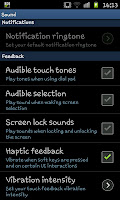
guide is to show you how to disable it in only a few quick steps. Firstly you need to access the the settings menu (like in the screen shot on the left) and then access the "Sound" options. In side the sound options you will see a screen like the one on the right hand side.

At the bottom of the screen (you may need to scroll to it) you will see the option called "Haptic feedback". You will need to uncheck this box and then you will notice that the vibrations stop.

You can of course feel free to turn this back on if you ever want to use it in the future.


Friday, June 2, 2017

Samsung Galaxy S6 Edge can’t be recognized by PC as media device other USB and charging related issues PC no longer detects Galaxy S6 Edge can’t transfer photos and music Galaxy S6 Edge suffered liquid damage and keeps rebooting every 15 seconds Galaxy S6 Edge charging port acting up device heats up so bad while charging S6 Edge stopped charging fast without apparently reason S6 Edge stuck in boot loop won’t charge S6 Edge won’t charge via USB cable but charges wirelessly S6 Edge stopped working won’t charge no sounds Galaxy S6 Edge won’t charge wirelessly S6 Edge charges at an unbelievably slow pace

Samsung Galaxy S6 Edge can’t be recognized by

 PC as media device, other USB and charging related

 issues

  1. PC no longer detects Galaxy S6 Edge, can’t transfer photos and music
  2. Galaxy S6 Edge suffered liquid damage and keeps rebooting every 15 seconds
  3. Galaxy S6 Edge charging port acting up, device heats up so bad while charging< /li>
  4. S6 Edge stopped charging fast without apparently reason
  5. S6 Edge stuck in boot loop, won’t charge
  6. S6 Edge won’t charge via USB cable but charges wirelessly
  7. S6 Edge stopped working, won’t charge, no sounds
  8. Galaxy S6 Edge won’t charge wirelessly
  9. S6 Edge charges at an unbelievably slow pace
I was surprised to have received requests for help from our readers who own a #Samsung Galaxy S6 Edge (#GalaxyS6Edge) because their problems are actually very easy to fix and it’s not really problem but a misconfiguration. According to them, the phone can no longer be detected by the computer as a media device. As a result, they can’t transfer their photos, videos, music and other media files.

Read on to learn how to fix this problem and other issues I included in this article. Here’s the list of the problems, you may click on the link to jump to a specific issue…
  1. PC no longer detects Galaxy S6 Edge, can’t transfer photos and music
  2. Galaxy S6 Edge suffered liquid damage and keeps rebooting every 15 seconds
  3. Galaxy S6 Edge charging port acting up, device heats up so bad while charging
  4. S6 Edge stopped charging fast without apparently reason
  5. S6 Edge stuck in boot loop, won’t charge
  6. S6 Edge won’t charge via USB cable but charges wirelessly
  7. S6 Edge stopped working, won’t charge, no sounds
  8. Galaxy S6 Edge won’t charge wirelessly
  9. S6 Edge charges at an unbelievably slow pace
For those who have other issues, visit our FaceBook Page and find similar problems. You may then use the existing solutions. If they don’t work or if you can find something similar to what you have, then Send direct msg  to contact us. Provide us with necessary information about the problem and we’ll help you fix it.
PC no longer detects Galaxy S6 Edge, can’t transfer photos and music
Problem: I have been having difficulty for the past two weeks attempting to get my phone and computer to cooperate and I was hoping you could help. Prior to two weeks ago I would plug my phone (using its original cable) into my computer and on my phone I would click something to the effect of to share content from my phone via media or camera to my computer. Once I completed that I was free to interchange music pictures etc. For the past two weeks when I plug my phone into my computer nothing happens other than my phone begins to charge. What I mean by nothing happens is there is no sounds from either my phone or com puter upon plugging in (because I do believe there was a dig of some sorts prior to these two weeks) or unplugging, there is no appearing of any sort of icon on the bottom left icon widget bar on my computer or next to my local C Drive under the folder of MY PC.
There is also no option on my phone for choosing which setting to connect to my computer with. I have tried multiple times over the past two weeks to repeat my previous successful endeavors including restarting both pieces of technology, downloading the USB drivers for my computer and smart switch for my phone. I have tried plugging in another USB into my computer prior and post download of the USB driver and it still w orks, I have tried plugging in my phone to another computer (a mac) and it shows USB installer options. I have tried activating the USB debugging and still no success. I am unaware of how to proceed, if assistance is possible I would very much appreciate it.
Related Problem: Hi Droid guy, I am writing in regards to below issue:
When I’m connecting my Samsung Galaxy S6 Edge to PC, the phone is recognized by the computer but can’t copy/paste any .mp3 from PC to phone. I can view and transfer the pictures from phone but no files from PC to Samsung. USB debugging on/off is not solving the problem.
I am using a Lenovo T440p (Windows 7) business laptopt and Samsung is a SM-G925F model. Many thanks, Albert.
Related Problem: Hello, I have spoken to Samsung and tried using USB debugging mode, safe mode, updating my drivers, updating windows 10, changing cables, changing ports, deactivating firewalls and anti-viruses and nothing will get my phone to appear on my PC. I just want to access my files so I can put music on my phone nut the phone only charges and does not appear as a media device. Any help would be appreciated.
Solution: I am sure it’s just a mis-configuration or something was changed in your device. Follow these steps:
  1. Try using the original USB cable and connect your phone to your computer.
  2. Once connected, touch the notification bar and drag it down.
  3. Touch “Connected as a media device” so as to display other USB options.
  4. Choose the type of connection you need to transfer files over to your computer.
  5. Assuming you had all drivers installed, the computer will automatically detect the device.
I think this is all you need.
Galaxy S6 Edge suffered liquid damage and keeps rebooting every 15 se conds
Problem: Water damage and reboots every 15 seconds. Would like to get my data copied, somehow. Was able to get to android menu to clear cache etc. Also, could able to get to safe mode..but phone restarts every 15 seconds. Appreciate any help. Thanks, Anand.
Answer: Apparently the phone is messed up and at this point, it’s difficult to determine whether the phone can still be fixed without visiting a technician or not. But try plugging the phone to charge to see if it can stay on enough for you to backup all your data. If not, then you need a technician to perform general cleaning procedures on your phone.
Galaxy S6 Edge charging port acting up, device heats up so bad while charging
Problem: My sons and I have had our phones for 5 months and I need them to last 2 years. I don’t know how that’s going to be possible since the charging port is acting up already. I plug in the phone and it goes in and out of charging mode. The charger get so hot you can not touch it. And my sons charger started to melt. Any help is appreciated.
Suggestion: I am sorry but I cannot ask you to troubleshoot devices as messed as yours. You need to have it checked by a t echnician immediately as it’s dangerous. If it’s true that your phone gets so hot while charging, there’s always a tendency the phone will create fire or the battery explode. I’m not trying to scare you or something but I batteries do explode when charged improperly. It’s a self-evident truth as I witnessed it with my own eyes that the battery I was charging manually exploded without warning and believe, the explosion it created was the kind that will shatter your fingers. So, seek help from a pro.
S6 Edge stopped charging fast without apparently reason
Problem: I noticed that my phone stopped using the fast charging feature and is now using cable charging. It started two nights ago and I’ve tried using other USB cables with my phone charger adapter which support fast charging but it’s not still working. What should I do , do I need to get a new charger or does the problem come from my phone.
Answer: Th ere’s no on/off switch for fast charging but there are requirements the phone should meet. Make sure the screen is off while charging and then verify the phone doesn’t heat up when plugged in. You may try booting the device in safe mode and charge from there. If it still doesn’t work, try turning it off and plug it in and if still no, you need a technician to fix it for you.
S6 Edge stuck in boot loop, won’t charge
Problem: My phone (which I got on 5/12/2015) is stuck in the boot cycle. if I do a soft reset it just pops up “Samsung galaxy s6 edge- powered by android.” and sits there without changing. if I plug in my charger and do a soft reset it shows the battery gauge with a lightning bolt but never my charging status. As such, I can not turn my phone off then back on in safe mode since I cant get it to turn on, to turn it off again.
Related Problem: My Galaxy S6 Edge is in like a permanent reset loop. It started earlier today just randomly. It will power on then it will boot up like normal and then after about a minute of it being on  the device will reset if self, when it comes back on it does the same thing. I have tried reseting it and turning it off for a while and neither of those have worked. I called Samsung and they couldn’t really do much.
Answer: I always say that when telling us the problem of your phone that seem to have occurred mysteriously, tell us every that could have happened and resulted to the problem because it’s a waste of time on our part to assume things.
If your phone keeps restarting, does it vibrate after it turns off or just before it turns on? If so, then the power button is stuck. If you can’t fix it by pressing it many times, then have someone fix it for you.
S6 Edge won’t charge via USB cable but charges wirelessly
Problem: My phone won’t charge from the USB port but will charge wireless. I bought a new charger so the charger isn’t the problem either. I need help please and thanks.
Answer: Check the USB port on your device and see if there’s a pin or two that’s bent. If there is, use a toothpick to straighten it out because that’s what causing the problem. Also remove the lint or debris if there’s any. If there†™s no issue with the pins, you have no other option but to backup your data if you still can and do the master reset.
  1. Turn off your Samsung Galaxy S6 Edge.
  2. Press and hold the Volume Up, Home and Power keys together.
  3. When the device powers on and displays ‘Power on logo’, release all keys and the Android icon will appear on the screen.
  4. Wait until the Android Recovery Screen appears after about 30 seconds.
  5. Using the Volume Down key, highlight the option, ‘wipe data/factory reset’ and press the Power key to select it.
  6. Press the Vol Down button again until the option ‘Yes â€" delete all user data’ is highlighted and then press the Power key to select it.
  7. After the reset is complete, highlight ‘Reboot system now’ and hit the Power key to restart the phone.
If all else fails, seek help from a tech.
S6 Edge stopped working, won’t charge, no sounds
Problem: Hey my Samsung GALAXY S6 Edge which I have had for only a few months completely stopped working won†™t charge turn on no sounds screen does nothing and this happened while in my pocket!! I’ve taken care of my phone well n can’t seem to figure out the issue… Any feedback would be greatly appreciated. Thank you!
Answer: System crash. That’s what I think happened to your phone. To fix that, all you have to do is press and hold the Volume Down and Power keys together for 10 to 15 seconds and the phone should reboot normally.
Galaxy S6 Edge won’t charge wirelessly
Problem: Purchased Samsung wireless charging pad EP-PG920I. Will not charge. Went out bought Samsung wireless charging pad EP-PN920B still will not charge. Both pads light up when plugged in with USB. I assume it must be my phone. Techs at Bestbuy have no idea. Your help is welcomed. Thanks!
Answer: Try repositioning the device over and over and if it still won’t charge wirelessly, try one more charging pad and if still no, then have the device checked. More often it’s a hardware problem and there’s nothing we can do about it.
S6 Edge charges at an unbelievably slow pace
Problem: My Galaxy S6 Edge is charging at an unbelievably slow pace.  I have done a soft reset /hard reset / low battery dump / and tried 3 different chargers.  It’s charging at a rate of around 5% per hour. I wiped the data from the phone and restored to factory to eliminate third party apps but have found no solution. Any ideas? Thanks in advance.
Answer: The fact that it still charges slow after the master reset is evident it’s not a firmware issue but pr obably a battery problem. Since it doesn’t have a removable battery, or if you try to remove it you’ll void the warranty, you have no other choice but to send it in for repair.

CONNECT WITH US

We are always open to your problems, questions and suggestions, so feel free to contact us by FaceBook Page. This is a free service we offer and we won’t charge you a penny for it. But please note that we receive hundreds of emails every day and it’s impossible for us to respond to every single one of them. But rest assured we read every message we receive. For those whom we’ve helped, please spread the word by sharing our posts to your friends or by simply liking our Facebook and Google+ page.

How to fix Galaxy S6 fast battery drain issue plus power related issues

S6Welcome to another post about solutions on how to deal with a #Samsung #GalaxyS6 battery drain issue! Power-related problems and specifically battery drain issue is a common complaint here in SmartAndroWorld so you may find this post helpful.

Below are the topics we discuss today:
  1. How to fix Galaxy S6 fast battery drain issue
  2. Galaxy S6 Active not charging
  3. Galaxy S6 loses battery power fast
  4. Galaxy S6 charges slowly, takes a long to charge
  5. Galaxy S6 only charges when on Ultra Power Saving Mode
If you have any other #Android issue, do not hesitate to contact us by using the link provided at the bottom of the page.

PROBLEM #1: HOW TO FIX GALAXY S6 FAST BATTERY DRAIN ISSUE

Losing power even when on charger. I have changed out cables….etc. Done a soft boot and close all apps. It takes all night to charge to 100 percent now. I have lost 4 percent in 5 minutes. â€" Darlene
Solution: Hi Darlene. The new Samsung S6 may be faster, more powerful, and comes brimming with the latest mobile technology the industry can offer but it does have one glaring weaknessâ€"its battery. Everything on the S6 has been improved relative to its predecessor, the S5, except the battery. In fact, the S6’s battery has 9% less capacity than that of the S5! It’s not unheard of from S6 users to get only about 12 hours of screen time on average despite moderate use.
Anyway, despite Samsung’s unfortunate decision to lessen the capacity of the battery, it should all the more prompt users to manage power efficiently. There are a few things that you can do to significantly extend your phone’s battery life and one of them is ensuring that apps don’t bleed your battery dry.

USE STOCK BATTERY USAGE INDICATOR

Installing third party battery power managers or apps that claim to help you manage battery power may be tempting but we say don’t. Do not install any such apps as your phone has a built in indicator that’s designed to give you the same exact function. Installing them is not only redundant but may not even be helpful at improving the situation at all. If you have Battery Doctor app or any similar app installed, we say you uninstall them.
Instead, we want you to go under Settings>Battery>Battery Usage. This screen will give you a basic idea on what app or feature is eating up your battery. Social networking and dating apps are usually the top battery power ho gs. Other apps that constantly need to sync to update their content are guilty too. Other apps with malicious intent are of course not a rarity today although it can get tricky how to isolate them from legitimate ones.
In general, use the battery usage indicator tool and see what app or apps you can disable, uninstall, or turn the notifications off of.

RESTART YOUR PHONE IN SAFE MODE

Another good way to determine if an app is responsible for fast battery drain issue is by booting in safe mode. Safe mode prevents third party apps from running so if the isssue fails to occur while in this mode, start uninstalling apps until you have identified and/or eliminated the cause. Here’s how to boot in safe mode:
  • Press and hold the Volume Down  and Power keys for 20 to 30 seconds.
  • Once you see the Samsung logo, release the Power key immediately but continue pressing the Volume Down key.
  • Your phone should continue booting up and you will be prompted to unlock your phone as usual.
  • You will know if the phone successfully booted in safe mode if the text †œSafe mode” is displayed at the lower-left corner of the screen.

TURN OFF BACKGROUND SYNC

Depending on your apps, this may or may not impact much. If you have at least five apps that syncs in the background, chances are they are the primary reason why your battery power can never stretch longer in a day. If you really don’t need the syncing, go under Settings>Accounts and turn them off. Switch to manual sync whenever you need any update for, say, emails.

DISABLE UNUSED RADIOS

Do not forget to turn off mobile data, Wi-Fi, and NFCs and other form of wireless communication. If you are in a poor cellular coverage area, try turning the phone off, especially if you are not expecting calls. The phone’s cons tant search and reacquisition of cellular signal taxes the battery and hastens power drain.

USE POWER SAVING MODE

If you think you’re going to have a long day ahead, consider using power saving mode. This feature helps in extending your phone’s battery power by slowing down the speed of the processor, dimming the screen, and turning off unnecessary features like vibration, haptic feedback, etc.

PERFORM A FACTORY RESET

If nothing changes even after doing all the things above, try restoring the phone’s defaults via factory reset. Here’s how:
  • From the Home screen, tap the Apps icon.
  • Find and tap the Settings icon.
  • Under the ‘Personal’ section, find and tap Backup and reset.
  • Tap Fact ory data reset.
  • Touch Reset device to proceed with the reset.
  • Depending on the security lock you used, enter the PIN or password.
  • Tap Continue.
  • Touch Delete all to confirm your action.
Keep in mind that factory reset will delete everything from the phone’s internal storage. Make sure that you create a backup of everything before you proceed.

PROBLEM #2: GALAXY S6 ACTIVE NOT CHARGING

Hi, first off, my phone is an S6 ACTIVE, but that wasn’t on the drop down list. I bought it about three weeks ago. It was working fine until a couple days ago, when I put in on the charger before I went to bed. It had about 15% when I plugged it in. When I woke up, the phone was still charging but said 0%. When I unplugged it, it said 100%. Then it powered off. When I hooked it back up to the charger, it charged up to 2%. I powered it on and it kept beeping like I was taking the charger out and plugging it back in over and over, which I wasn’t. (bing Bing BING…BING Bing bong). Then I took it off the charger and it continued acting as if I was plugging it in and unplugging it. And would intermittently say “Connected to Dock”.
It has charged sporadically for the past couple days. I have tried a different cord, a different wall charger, a soft reset using the directions on your site, wiping the cache partition, and charging it on my computer. Nothing has worked.
Any other ideas? I have had an iPhone since they were first introduced and just traded in my S5 for this. I loved it but am now feeling frustrated and would appreciate any help so much! Thanks in advance. â€" Kristen
Solution: Hi Kristen. Hopefully there is no hardware problem involved here. It looks like the problem is more software in nature since you can still charge the phone randomly. The phone may be discharging faster than the charger can store power resulting to the problem you have right now.
If you haven’t tried booting the phone in safe mode or doing a factory reset, make sure to do them.
If the problem remains though, have the phone checked. Unlike the Galaxy S5, we cannot simply replace the battery so you want to make that a technician check the its status.

PROBLEM #3: GALAXY S6 LOSES BATTERY POWER FAST

Hello Droid guy!
Found you on the internet and decided to give you a try before I throw my phone or take a hammer to it! haha!
I got this phone 3 months ago and I have had issues with it s ince. I go to Verizon’s store where I got it just to have them tell me there is nothing they can do…WHAT? I paid $700 for a phone that just freezes up constantly, try to text and it will go to a blank screen then FINALLY goes back to home screen for me to swipe my pattern to get back on to finish my text.
The battery dies FAST!  I have to charge at least 3 times a day!  No programs are open, I always make sure I close everything out.  It got worse when my friends daughter tried to swipe my phone (she said a couple of times, end of being more!!) I did not ever set up a back up code to get on just in case something like this happens….the sales agent set up my p hone.
After finally Googling to unlock my phone (myself) the Verizon agent set up a cloud for me to save all my info just in case the phone automatically reset back to factory settings.  I needed to save my info I had for a court case coming up so I let him do it.
It took HOURS and I mean like 9 hours to put everything on their cloud…nightmare!!  But since that tim e my phone has gotten worse.  I can be texting and the screen freezes (like I mentioned above). Battery will not hold a charge. It was 80% when I went to bed at 11pm last night and around 3 am, I heard the sound that lets me know the battery just died! 
At night when just sitting on my nightstand I can hear it “clicking” the sounds it makes when you hit the button on right side to shut off while not in use.
I can make a call, while in my car and it goes to my bluetooth in my car but when I am finished with the call the screen will show the call is disconnected but you can’t get it off your screen!! Then you can see your home screen in the background of the end call screen.  Please help me before I lose my mind!!
Signed,
Despera te and Frustrated!! â€" Theresa
Solution: Hi Theresa. It will take longer than this post to give you the entire bunch of possible factors that might cause these problems you mentioned. As an overall resolution though, we will recommend that you do a master reset to minimize any potential firmware issue. If your phone works normally after a factory reset (no slow performance issues, lags, black screen, etc.), that’s a clear indicator an app or apps are the reasons for the problems.
Once you have performed a factory reset, make sure to install only trusted and/or reliable apps. By reliable, we mean mainstream apps only. For example, if you are fond of shopping, make sure that you only install official shopping apps of retailers (although this doesn’t even guarantee that you won’t experience abnormal battery drain). DO NOT install any apps that promises to improve performance or anything of that sort. Most of the time, these types of apps are useless and don’t really do anything important.
Keep only those that you use for work like third party email apps. Productivity apps are nice if they work as advertised but most of the time they simply don’t. The idea is, avoid installing unnecessary or redundant applications. Minimizing the number of installed apps will also help.
You also want to refer to our advice for Darlene above on how to get more juice out of your battery.
We have faith in your Samsung Galaxy S6. it’s a powerful and advanced phone but it needs help from its user to work to it s full potential.

PROBLEM #4: GALAXY S6 CHARGES SLOWLY, TAKES A LONG TO CHARGE

Hello. I have Samsung Galaxy S6. The problem that has occurred is that my phone battery is not working properly. I am not sure but I guess it might happen after using phone as a GPS device in a car when outside was sunn y with 40 degrees Celsius (105 degrees F) and that sun beams might affected it.
 It drains power very quickly (being on Facebook drains 1 percent every two minutes and doing nothing drains 1 percent approximately every 5-10 minutes).
It charges for a long time. it takes around 12 hours to charge when phone is switched off.
When it is on and I try to charge, it still actually drains battery just slower than usual. Fast charging option isn’t working. Sometimes phone does not even respond to a charger (I tried few USB cables). In this case, when phone is switched off and I put to charge it responds by popping up the lighting sign but then it does not continue charging.
Last night I left my phone to charge while it is switched off and instead of charging it actually drained 20 percent (WHILE it is off). Wireless charger does not work properly as well (checked this function in Samsung manufacturer shop). I brought my phone technical support center to check the problem and they guess that it is the problem with micro USB input.
As they only guess, I do not believe this their version as the phone always respond to a charger at least somehow except wireless charging which I guess is not related to micro USB input.
Is there any ideas what can it be? Is it enough just a battery replacement or something more? Because as support center told me replacing micro USB input is expensive as it is attached to a screen (so I really do not want to do that before being sure what is the problem). Thank you very much! â€" Laurynas
Solution: Hi Laurynas. It absolutely doesn’t make sense to say that t he USB port may be the reason for the problem given that nothing changes when you charge wirelessly. You may be right though that the battery is to blame. Unfortunately, you are likely to shell out more if you want the battery replaced (unless you can use the standard warranty).
Before you do battery replacement, make sure to follow all our suggestions above to ensure that this is not a software problem.

PROBLEM #5: GALAXY S6 ONLY CHARGES WHEN ON ULTRA POWER SAVING MODE

My phone will not charge at all unless on ultra power savings mode. In fact, if it’s not on upsm, and it’s plugged in, the phone will show its charging but then actually die down in battery percentage. I am using the fast charger given with the phone and it still takes like 3 hours for the phone to charge on upsm.
I have tried other chargers, but it takes even longer to charge the phone.
I have also taken it in and the general Manger of that Verizon store said to soft reset the phone and then favor reset it and it’s still just doing the same things. He actually just wasn’t helpful at all and said it was my photo Gallery killing my battery. I don’t know. I just don’t know what to do anymore. â€" Amanda
Solution: Hi Amanda. That the phone charges, albeit slowly, when in ultra power saving mode seems to suggest that a lot of background tasks may be happening when the phone is on that it consumes more power more than the charger can give it when charging.
When in ultra power saving mode, only the most basic functions are running and the phone’s processor are prevented from running too fast to save power. In other words, your S6 is basically converted into an expensive dumb phone like the ones from about 10 years ago. This als o means that when in normal mode, the phone is actually doing processes and tasks even if you are not actively opening or using any app. Such behavior can be due to a malicious app although other mundane explanations like leaving a lot of radios on or background syncing unchecked can also be blamed.
Doing a factory reset do not usually work if you re-install the same problem app (if an app is the reason) afterwards. Consider doing another round of factory reset, charge the phone without installing anything, then observe.
You can also refer to the instructions given above f or more tips.
If that won’t help, have the phone replaced if it’s still covered by a warranty.
Having problems with your phone that won’t turn on?
We can help you troubleshoot. We already published troubleshooting guides for the following devices:
  • Samsung Galaxy S2
  • Samsung Galaxy S3
  • Samsung Galaxy S4
  • Samsung Galaxy S5, Android Lollipop edition
  • Samsung Galaxy S6
  • Samsung Galaxy S6 Edge
  • Samsung Galaxy S6 Edge+
  • Samsung Galaxy S7
  • Samsung Galaxy S7 Edge
  • Samsung Galaxy Note 2
  • Samsung Galaxy Note 3
  • Samsung Galaxy Note 4 Android Lollipop edition
  • Samsung Galaxy Note 5 

ENGAGE WITH US

If you are one of the users who encounters a problem with your device, let us know. We offer solutions for Android-related problems for free so if you have an issue with your Android device, simply fill in the short questionnaire in this link and we will try to publish our answers in the next posts. We cannot guarantee a quick response so if your issue is time sensitive, please find another way to resolve your problem. 
When describing your issue, please be as detailed as possible so we can easily pinpoint a relevant solution. If you can, kindly include the exact error messages you are getting to give us an idea where to start. If you have already tried some troubleshooting steps before emailing us, make sure to mention them so we can skip them in our answers.
If you find this post helpful, please help us by spreading the word to your friends. SmartAndroWorld has social network presence as well so you may want to interact with our community in our Facebook and Google+ pages.